
Revision of Install Trisquel as a Server from Wed, 10/24/2012 - 20:37
The revisions let you track differences between multiple versions of a post.
In this tutorial I will show you how to install Trisquel Gnu/Linux as a Server. For this we will use the Trisquel NetInstall which is only 25Mb, and install (only) the necessary packages to have a fully customized Trisquel Server running.
Get the Iso
This step is quite simple, you only have to download the image from here: https://trisquel.info/en/downloadDon't forget to select Trisquel NetInstall. If you computer support X64 then choose it for maximum performance before downloading.
After this just fallow one of tutorial below (as an example) in order to burn the image and start the installation of Trisquel :
The Installation
This is the most important part since we are going to install Trisquel on the Hard Drive. For this example I will use the entire space of the Hard Drive but you can adjust it as you wish.
1 --> Start the Installation

2 --> Select your Language
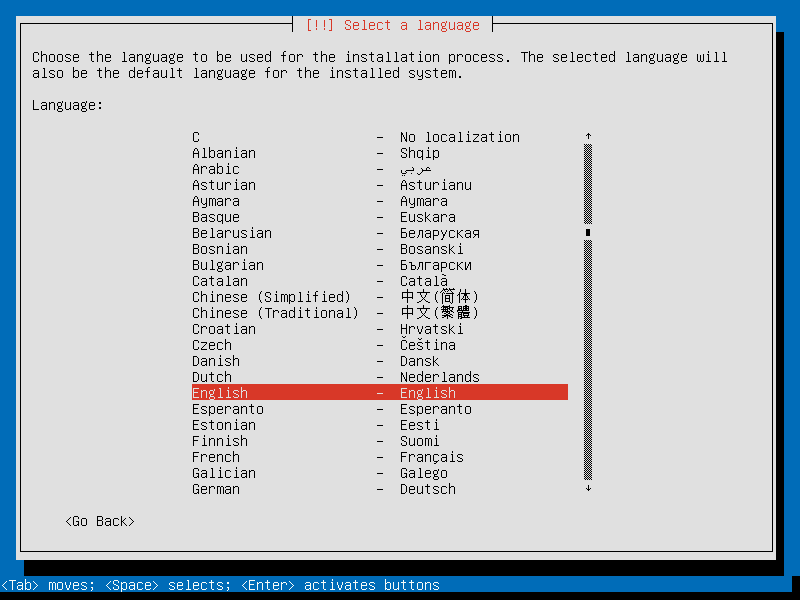
3 --> Select your Country

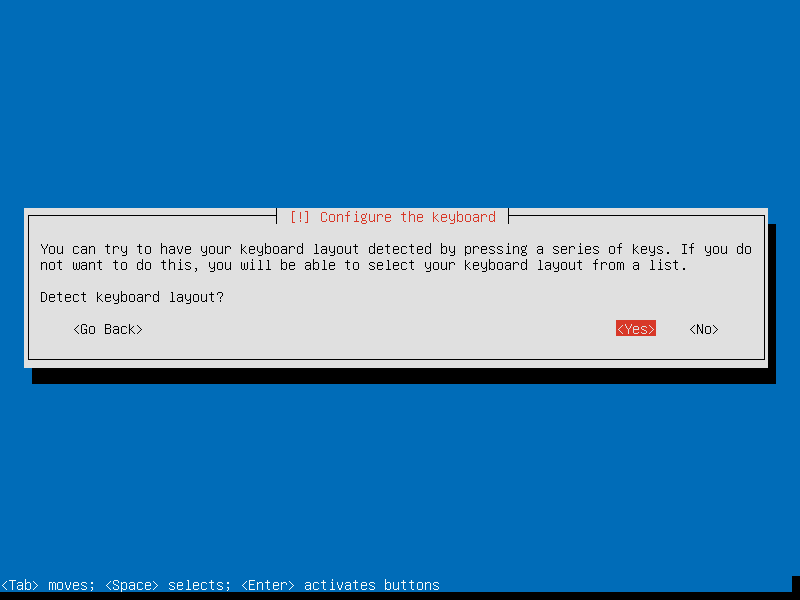
4 --> Press YES to configure the Keyboard Layout
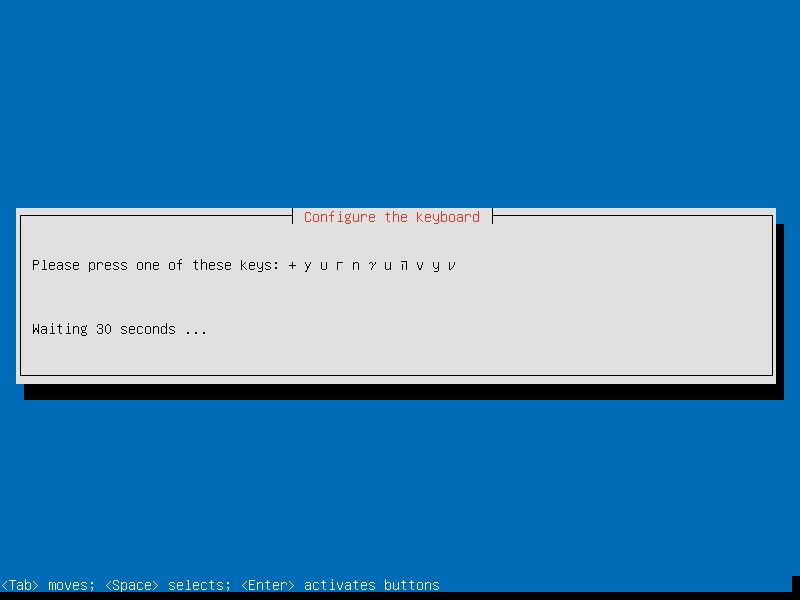
5 --> Press one of the keys that appear in the screen until your Keyboard is found
6 --> When your Keyboard Layout is found just press Continue.
Since I have a Portuguese Keyboard (pt) it is normal to see "pt" appearing instead of "us" for example.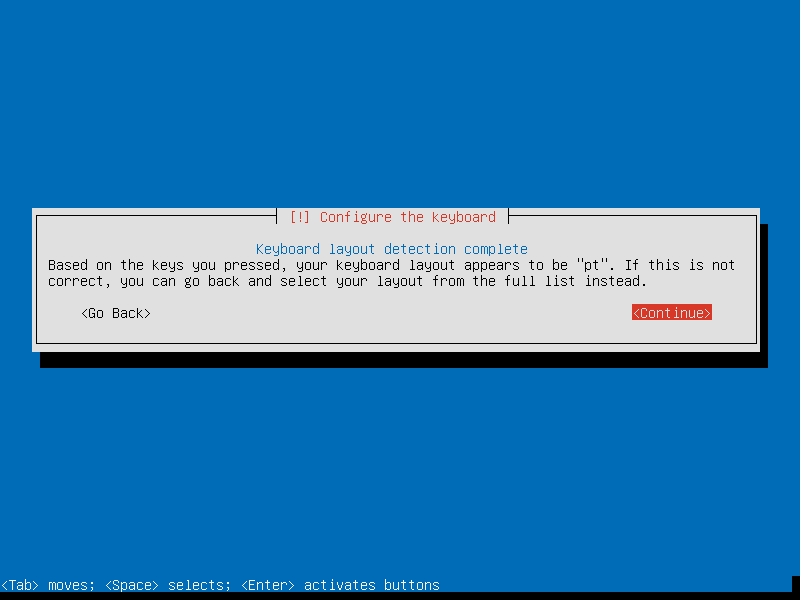
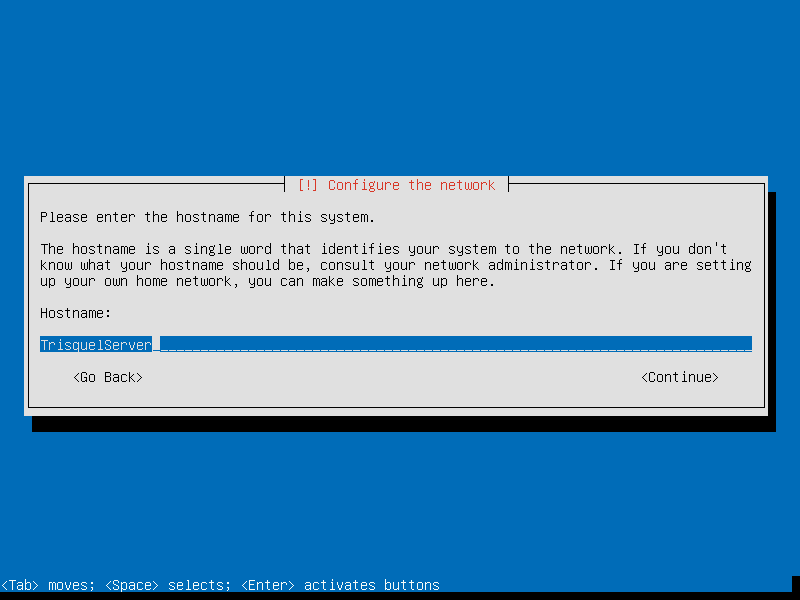
7 --> Type and Hostname for the Installation (The name that will appear on the Network)
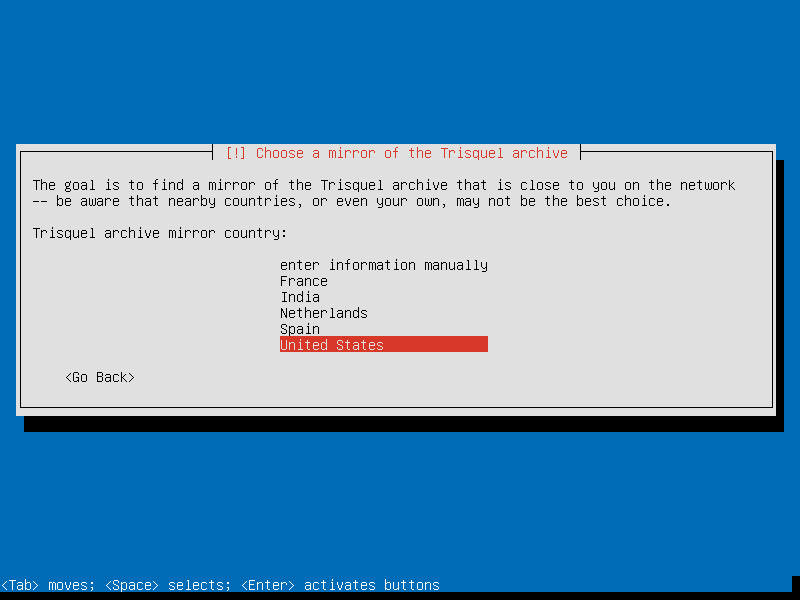
8 --> Choose the Country Mirror the less far from you
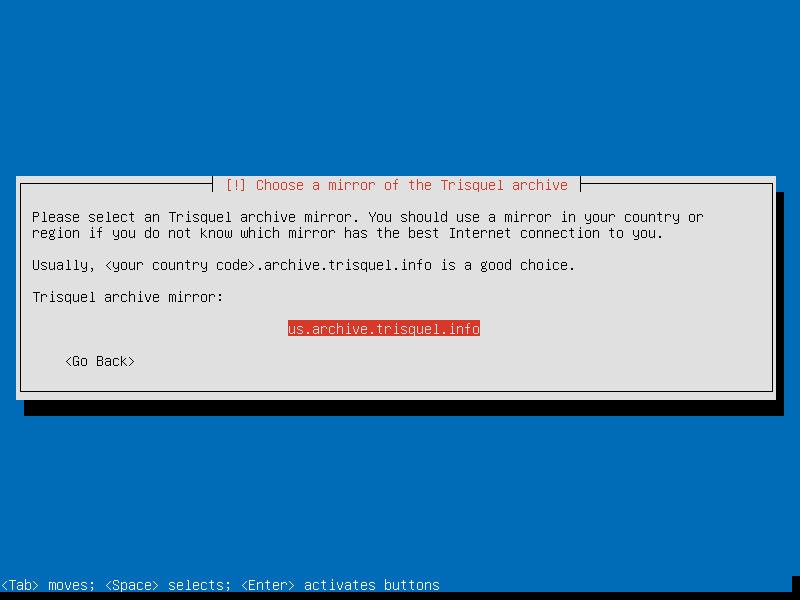
9 --> Press Enter over the mirror you want (in that Country)
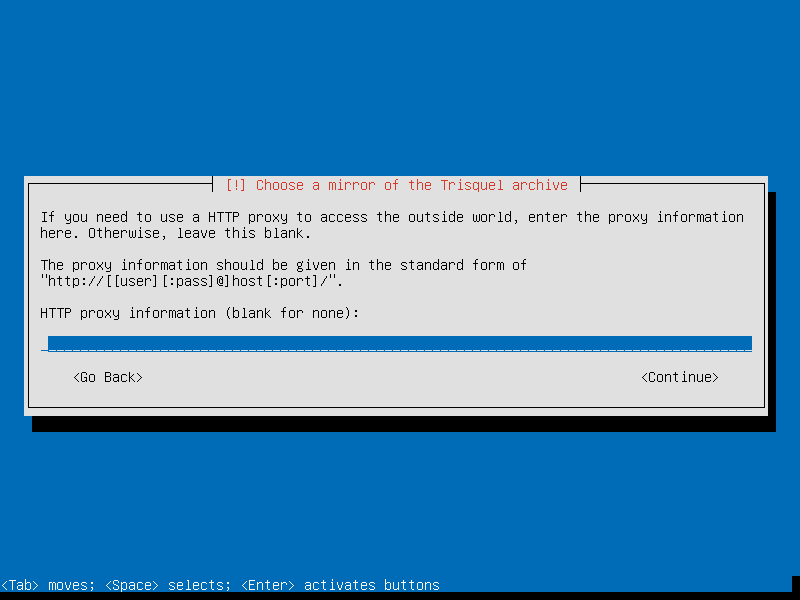
10 --> If your network is under a proxy then type Proxy Information. else Press enter
11 --> A black "Loading" screen will appear, don't worry it will take (approximately) 1-2mn to disappear

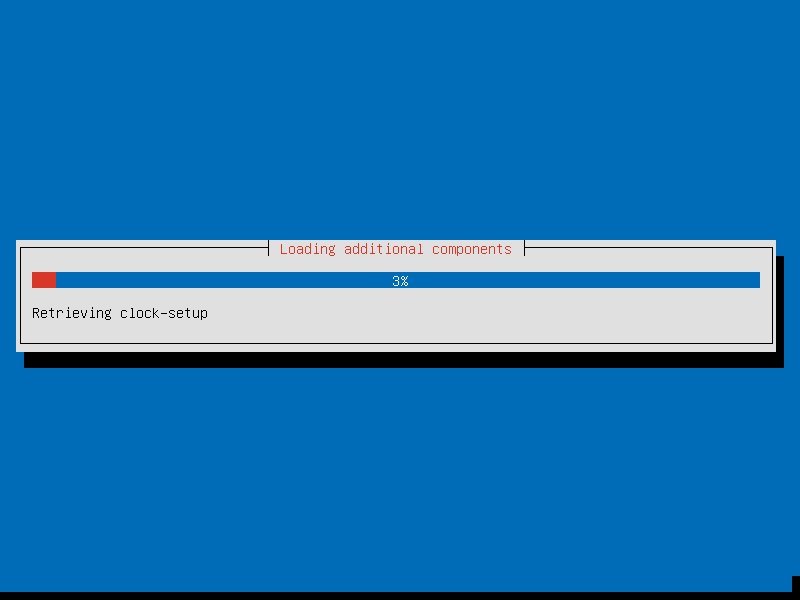
12 --> After the "Loading" screen there will be a new Loading screen for additional components (just let him do its work)
13 --> Confirm you TimeZone
I live near Lisbon so it's normal to see (Europe/Lisbon)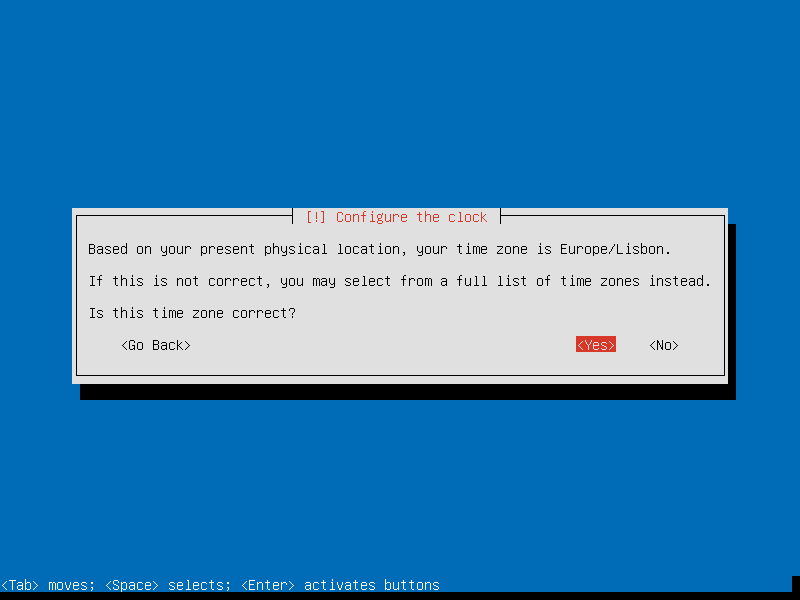
14 --> Partition the Disk (in this example we will use the Entire Disk)
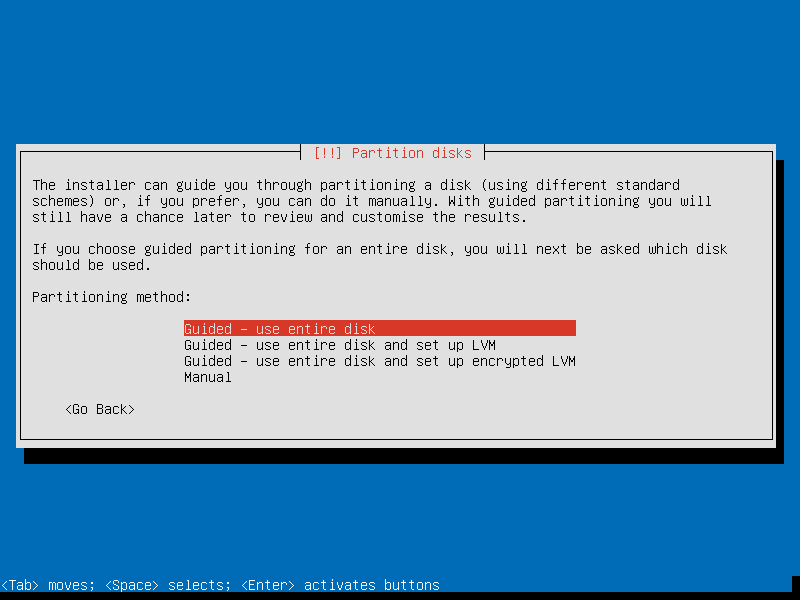
15 --> Select the Disk you want to partition
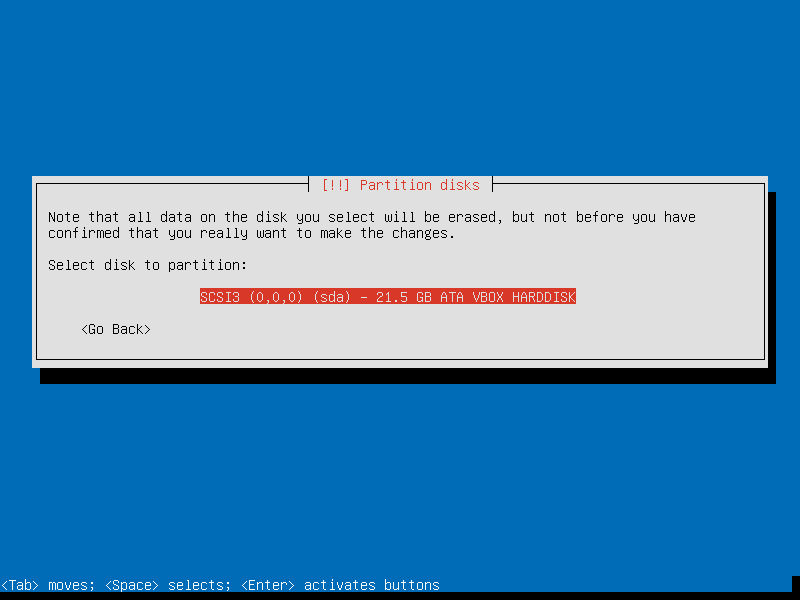
16 --> It will create a Swap Partition and an Ext4 Partition. You just need to press Enter
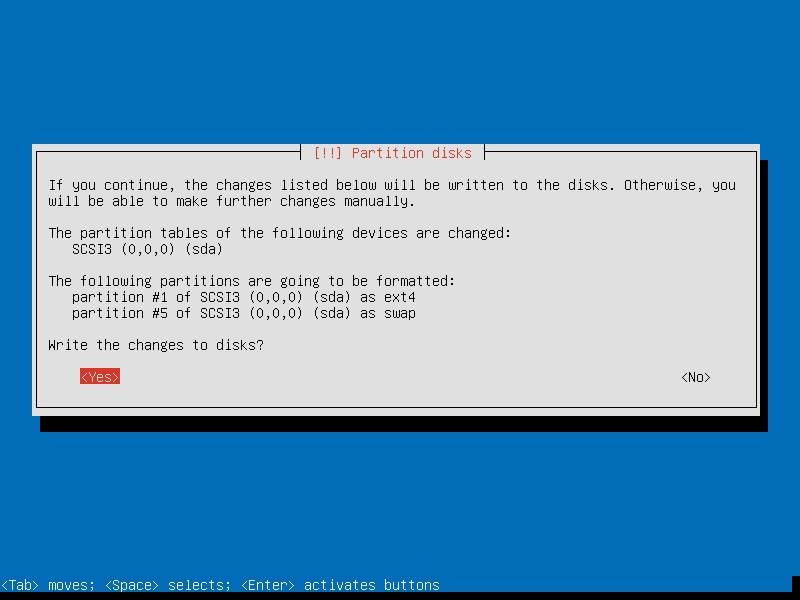
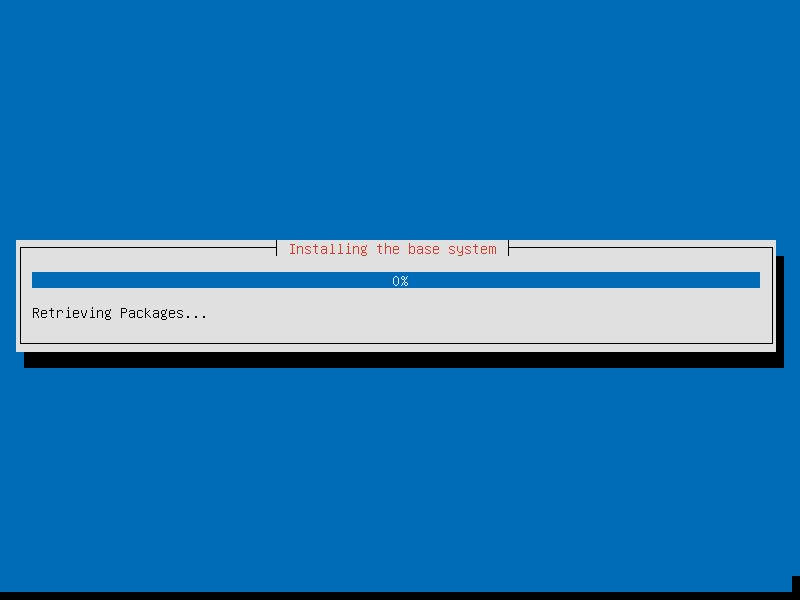
17 --> The partition will be done, and, after that, the Installation of the "base" will begin.
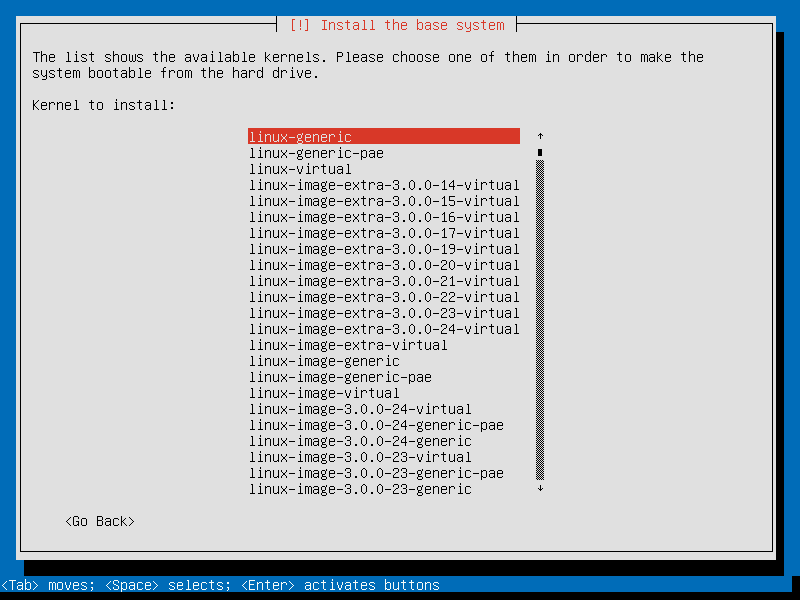
18 --> Select the Kernel you want (I recommend the linux-generic Kernel (or linux-generic-pae if you're using a x86 System with PAE support)
19 --> The installaton of the Kernel (and the rest of the System) will begin
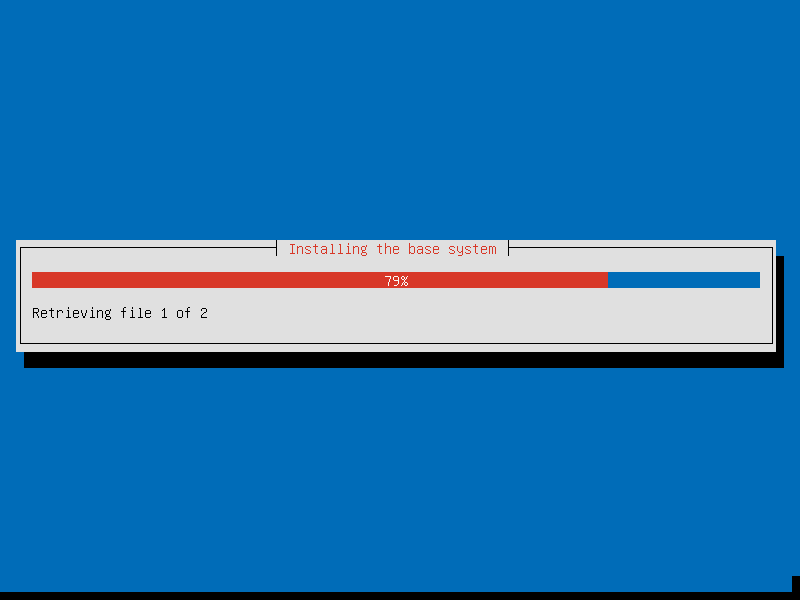
20 --> Type the Full Name of the User (And press Enter)
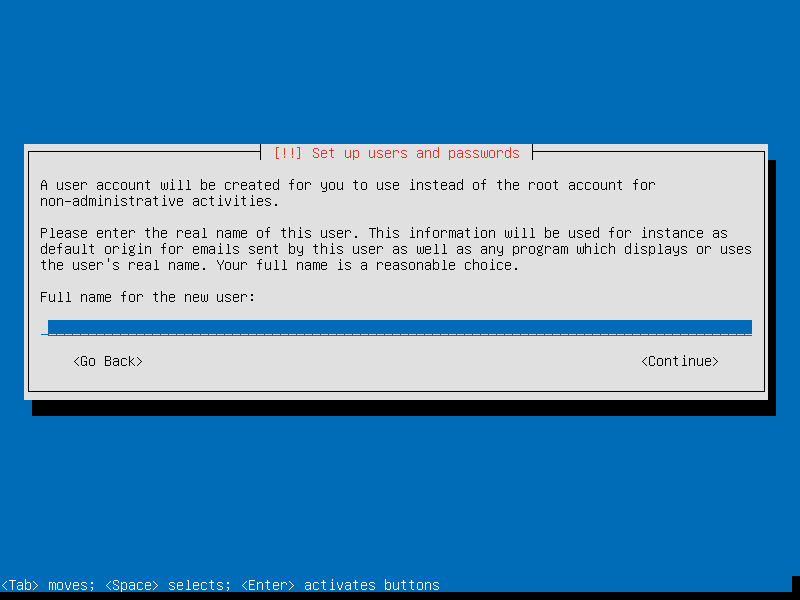
21 --> Type the Username of the User (And press Enter)
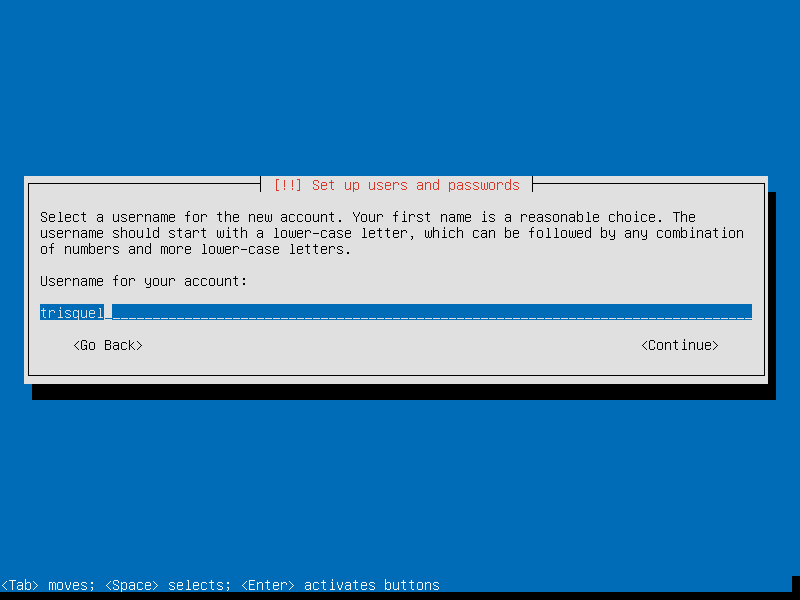
22 --> Type the password for the User account (And press Enter)
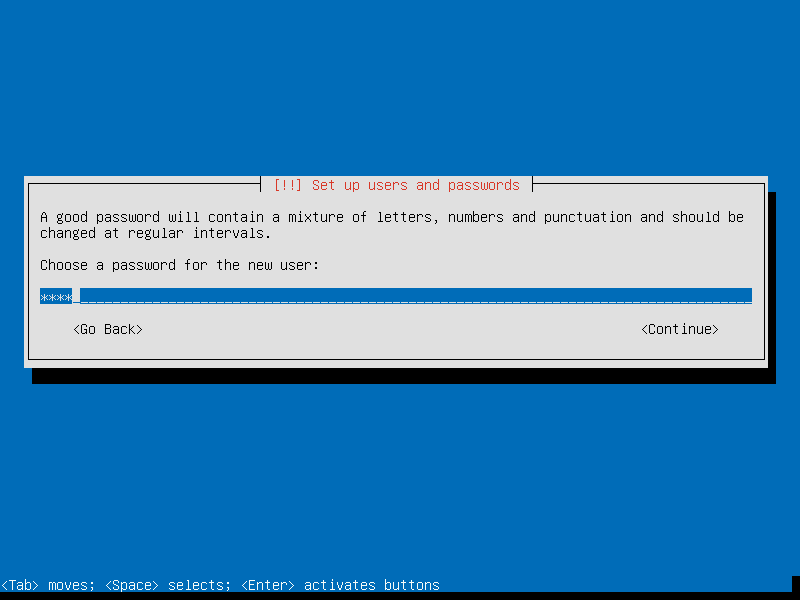
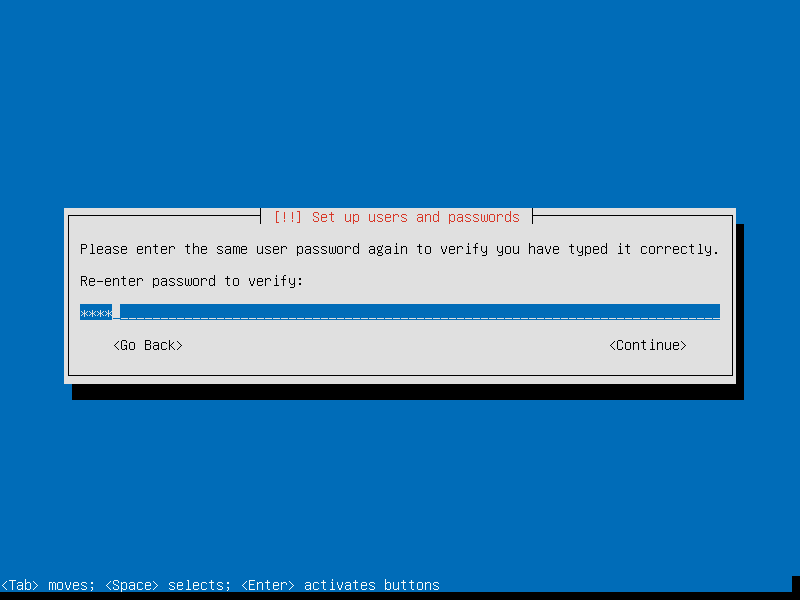
23 --> Re-Type the password for the User account (And press Enter)
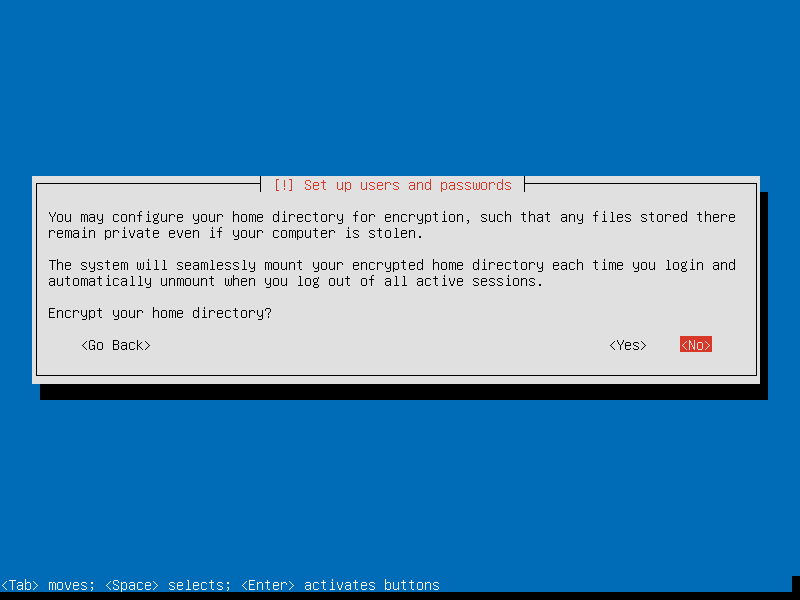
24 --> Choose if you want your Home Directory to be Encrypted (I recommend to do so, but with the only condition that you will never loose the password... or else you will have very bad time)
25 --> The latest packages available will be downloaded and installed (So no need to update after the installation)