
Revision of Installing, Updating and Removing Software from Wed, 02/02/2011 - 05:10
The revisions let you track differences between multiple versions of a post.
Parts of this manual are adapted from the official Ubuntu documentation, courtesy of the Ubuntu documentation team, freely licensed under the Creative Commons ShareAlike 3.0 Unported license.
The application downloaded in the examples in this manual is Audacity, a popular sound editing and recording suite.
Installing From the Repository
The simple way
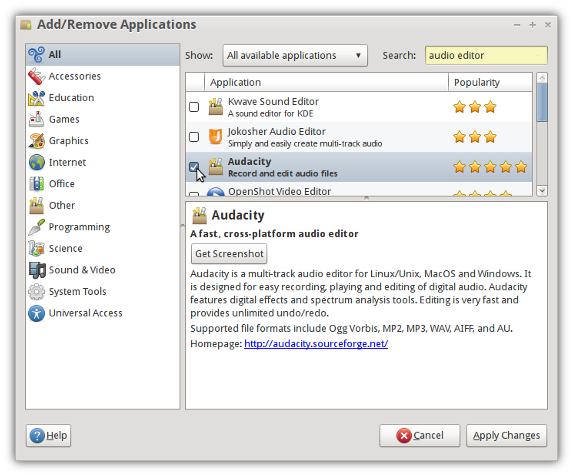
First, open the Add/Remove Applications tool from the Main Menu.
With this simple program you can browse thousands of applications, sorted by category, to add or remove. Only some of the applications from the Trisquel repository can be installed from here, generally the more popular and graphical ones.
Using Synaptic Package Manager
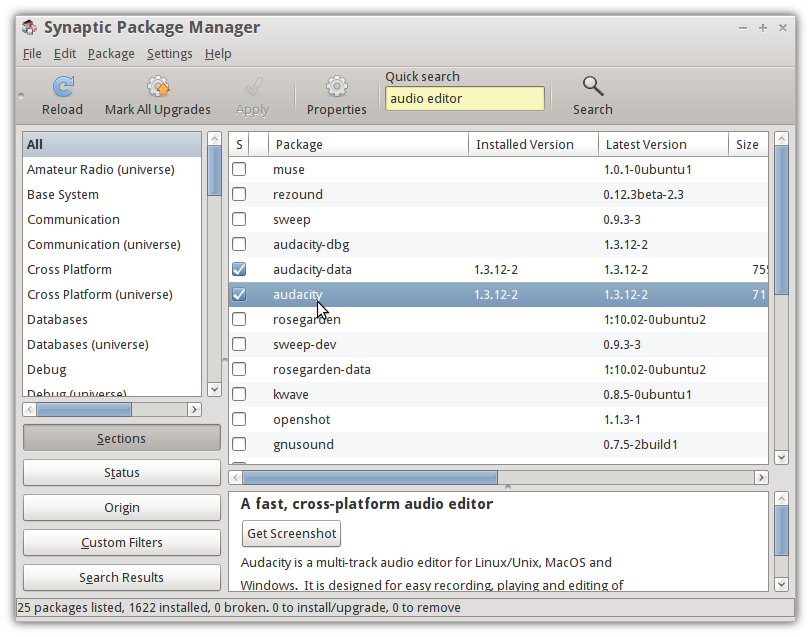
Synaptic is a more advanced package management application which can be used to install any software package in Trisquel's repository.
- In the Main Menu, click System → Administration → Synaptic Package Manager. Enter your password if prompted.
- Click Search to search for an application, or click Sections and look through the categories to find one.
- Right-click the application that you want to install and select Mark for Installation.
- If you are asked if you would like to mark additional changes, click Mark.
- Select any other applications that you would like to install.
- Click Apply, and then click Apply in the window that appears. The applications that you chose will be downloaded and installed.
Adding Packages to the Repository
If you want to install a software package not found in the Trisquel repository, or a different version than the one found in the repository, you can do so by adding a Personal Package Archive, or PPA, from a website called Launchpad.
Suppose you want would rather use a "bleeding-edge" daily build of Audacity instead of the more stable version in the default Trisquel repository. It is available from Launchpad at https://launchpad.net/~audacity-team/+archive/daily. To add this PPA, you would do the following:
- Open Software Sources from the Main Menu (System → Administration → Software Sources).
- Click the Other Software tab.
- Click the Add button.
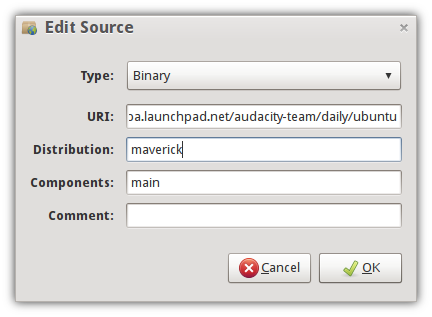
- In the text field, enter the following text: deb http://ppa.launchpad.net/audacity-team/daily/ubuntu maverick main
In step 4, the "maverick" part assumes you are running Trisquel 4.5, codename Slaine, which is based on Ubuntu 10.10 (Maverick). If you are using another Trisquel version, you would change this portion. For example, if you're running Trisquel 4.0 Taranis you would insert the text deb http://ppa.launchpad.net/audacity-team/daily/ubuntu lucid main instead.
Installing From Archives
.deb archives
.deb archives are used by dpkg, the package management system of Debian and its many derivatives (including Trisquel), to handle software installation.
To install from a .deb, first download it. Audacity .deb archives for Ubuntu Lucid/Trisquel Taranis can be downloaded from any of the mirrors here. Click the file to open it. A graphical application called GDebi runs and the package is ready to be installed.
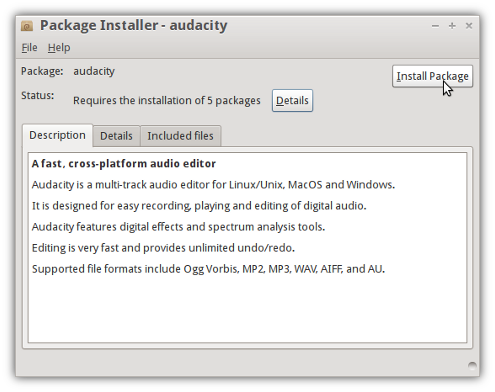
In the above example, Audacity requires 5 other packages to work. Such packages are called "dependencies". These files are fetched from the repository during installation.
Always make sure you install and download single packages only from websites you trust.
Converting .rpm to .deb
Perhaps the package you want is available in .rpm format but not .deb. RPM is an alternate package management system that many distributions (not including Triquel) use by default. To convert .rpm archives to .deb, there is a tool called alien which is already installed in Trisquel.
Download the .rpm package you want to convert. Audacity .rpm's can be downloaded here. The version we are using in this example is 1.3.12-0.6.beta.fc13.i686.
Open a terminal.
Use ''cd [directory] to go to the directory the .rpm was downloaded to. For example, if it is in your Downloads folder, run the following command:
cd /home/[username]/DownloadsAfterwards, run:
sudo alien -k audacity-1.3.12-0.6.beta.fc13.i686.rpmA .deb will be created in the same directory. Now you can install from your new .deb!
Updating Software
The Update Manager automatically finds software updates for your computer when they are available. It regularly gathers information on potential updates from a number of online update sources.
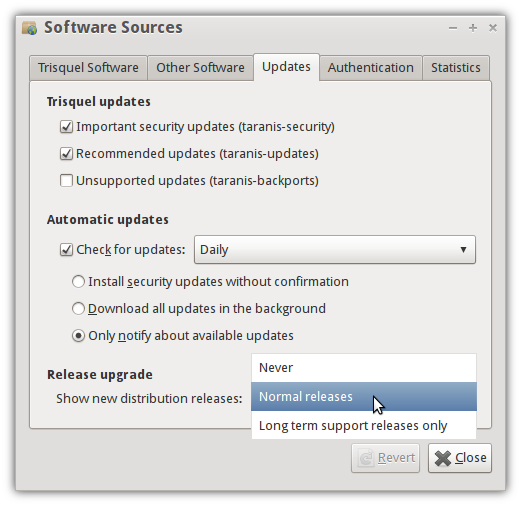
If you click System → Administration → Software Sources and select the Updates tab, you will notice that three update sources are available. An explanation for each of these is provided below:
- Important security updates: Updates which fix critical security flaws are made available through this source. It is recommended that all users leave this source enabled (it should be enabled by default).
- Recommended updates: Updates which fix serious software problems (which are not security flaws) are made available through this source. Most users will want to leave this source enabled as common and annoying problems are often fixed with these updates.
- Unsupported updates: When new versions of popular software are released they are sometimes “back-ported” to an older version of Trisquel so that users can benefit from new features and fixes for problems. These backports are unsupported, may cause problems when installed and should only be used by people who are in desperate need of a new version of a software package which they know has been backported.
Sometimes an icon will appear on your panel that looks like this: 
Click on the icon and click Install Updates to get software updates.
Upgrading to a new version of Trisquel
Updating to a new version of Trisquel is easy using the Update Manager.
- From the Main Menu, select System → Administration → Update Manager.
- Click the Check button to check for new updates.
- If there are any updates to install, use the Install Updates button to install them, and press Check again after that is complete.
- A message will appear informing you of the availability of the new release.
- Click Upgrade.
- Follow the on-screen instructions.
Note that Long Term Support (LTS) versions of Trisquel by default will only upgrade to the next available LTS version, released every two years. If you want to change this to install the next Short Term Support (STS) version instead, do the following:
- From the Main Menu, select System → Administration → Software Sources. Enter your password if prompted.
- Select the Updates tab.
- From the last menu, select Normal releases instead of Long term support releases only.